> For the complete documentation index, see [llms.txt](https://docs.lumidb.com/llms.txt). Markdown versions of documentation pages are available by appending `.md` to page URLs; this page is available as [Markdown](https://docs.lumidb.com/integrations/cesium-3d-tileset-export.md).
# Cesium 3D Tileset export
This guide explains how to stream point cloud data from LumiDB into any software that supports Cesium 3D Tileset streaming. For ArcGIS, QGIS and the other links, see [Integrations](https://docs.lumidb.com/integrations.md).
### Get a 3D Tileset URL for a full dataset
1. In the **Layers** panel, click the dataset you want to stream.
2. In the dataset panel on the right, click the **Share** button, then click **3D tileset link**.
Share → 3D tileset link
3. In the **Copy 3D Tileset link** dialog, click **Copy**. This copies the tileset link to your clipboard.
4. Save the link for later use, or paste it directly into your target software by following the instructions in [Streaming in external software](#streaming-in-external-software).
### Get a 3D Tileset URL for a filtered or clipped dataset
1. Follow the instructions in [Merging, cropping, and filtering datasets](https://docs.lumidb.com/explore-and-analyze/merging-cropping-and-filtering-datasets.md).
2. In the **Clip** panel, under **Stream**, click **3D Tiles**.
Clip panel → Stream → 3D Tiles
3. In the **Copy 3D Tileset link** dialog, click **Copy**. Then follow the instructions in [Streaming in external software](#streaming-in-external-software).
Copy the tileset link
{% hint style="info" %}
The same menus also offer a **QGIS** link and an **ArcGIS I3S** link. See [ArcGIS](https://docs.lumidb.com/integrations/arcgis.md) and [QGIS](https://docs.lumidb.com/integrations/qgis.md).
{% endhint %}
### API key
To stream into external software, you need a personal [API key](https://docs.lumidb.com/archive-management/api-keys.md) for authentication. The **Copy 3D Tileset link** dialog has a **Create API key** button.
{% hint style="danger" %}
**Keep your key private.** LumiDB shows the key only once. Never paste it into a chat message or commit it to a Git repository.
{% endhint %}
### Streaming in external software
LumiDB supports point cloud streaming into any application that supports Cesium 3D Tilesets.
This example uses the [6DPlanner](https://www.6dplanner.com/) software.
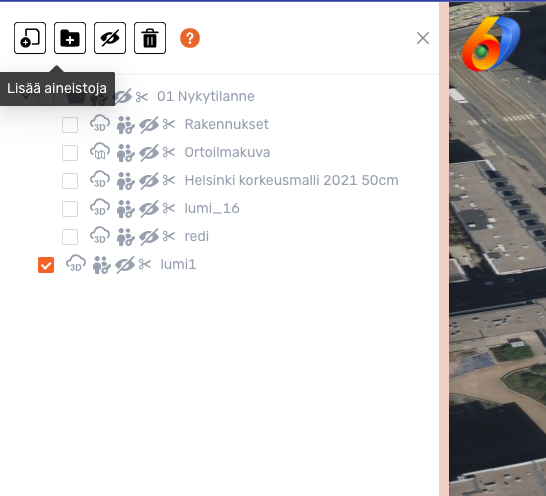
1. In 6DPlanner, open *Data Tree* → *Add datasets*.
2. Select the *Tiles* option.
3. Required fields:
1. **Linkki:** Paste the 3D Tileset URL copied earlier
2. **Käyttäjänimi:** Use `apikey`
3. **Salasana:** Enter your personal API key
4. Click *Add dataset* to start streaming.
{% hint style="info" %}
*Note:* In 6DPlanner, the *Name* and *Resolution multiplier* fields are specific to the application. Refer to 6DPlanner documentation for recommended values.
{% endhint %}
If you need help, contact .
---
# Agent Instructions
This documentation is published with GitBook. GitBook is the documentation platform designed so that both humans and AI agents can read, navigate, and reason over technical content effectively. Learn more at gitbook.com.
## Querying This Documentation
If you need additional information that is not directly available in this page, you can query the documentation by asking a question.
Perform an HTTP GET request on the following URL with the `ask` and `goal` query parameters:
```
GET https://docs.lumidb.com/integrations/cesium-3d-tileset-export.md?ask=&goal=
```
`ask` is the immediate question: it should be specific, self-contained, and written in natural language.
`goal` is what the user is ultimately trying to achieve, the reason they need the answer. Sharing it helps GitBook give you a better, more relevant answer. A goal is most helpful when it describes the outcome the user wants rather than restating the question. For example, with `ask=how do I create an API token`, a goal like `automate deployments from our CI pipeline` lets GitBook tailor the answer to that use case.
The response will contain a direct answer to the question and relevant excerpts and sources from the documentation.
Use this mechanism when the answer is not explicitly present in the current page, you need clarification or additional context, or you want to retrieve related documentation sections.